People trying to look better on webcam do not need to start by buying a 4K camera, according to guidance from Tom's Hardware. The more useful fixes are duller and cheaper: control the light, put the camera at eye level, narrow the frame and stop trusting bad automatic exposure.
The advice cuts against the usual gadget instinct. Tom's Hardware notes that Google Meet, Microsoft Teams and Zoom commonly cap outgoing video at 1080p or 720p depending on the account, so a 4K webcam will not necessarily produce a 4K call. Higher resolution can also demand more bandwidth and system power, which may show up as lag, freezing or choppy video.
How can I look better on webcam?
Start with the parts of the image people actually see: your face, the light on it and the angle of the lens. A lower-resolution webcam with good controls can beat a sharper camera aimed from the wrong height under harsh ceiling lights.
Tom's Hardware recommends looking for a webcam with a narrower field of view or digital zoom rather than chasing maximum resolution. Wide-angle lenses can bend the image at the edges and make the center of the frame look larger. The site cites the Logitech Brio 500 as one model that can narrow its view to 65 degrees.
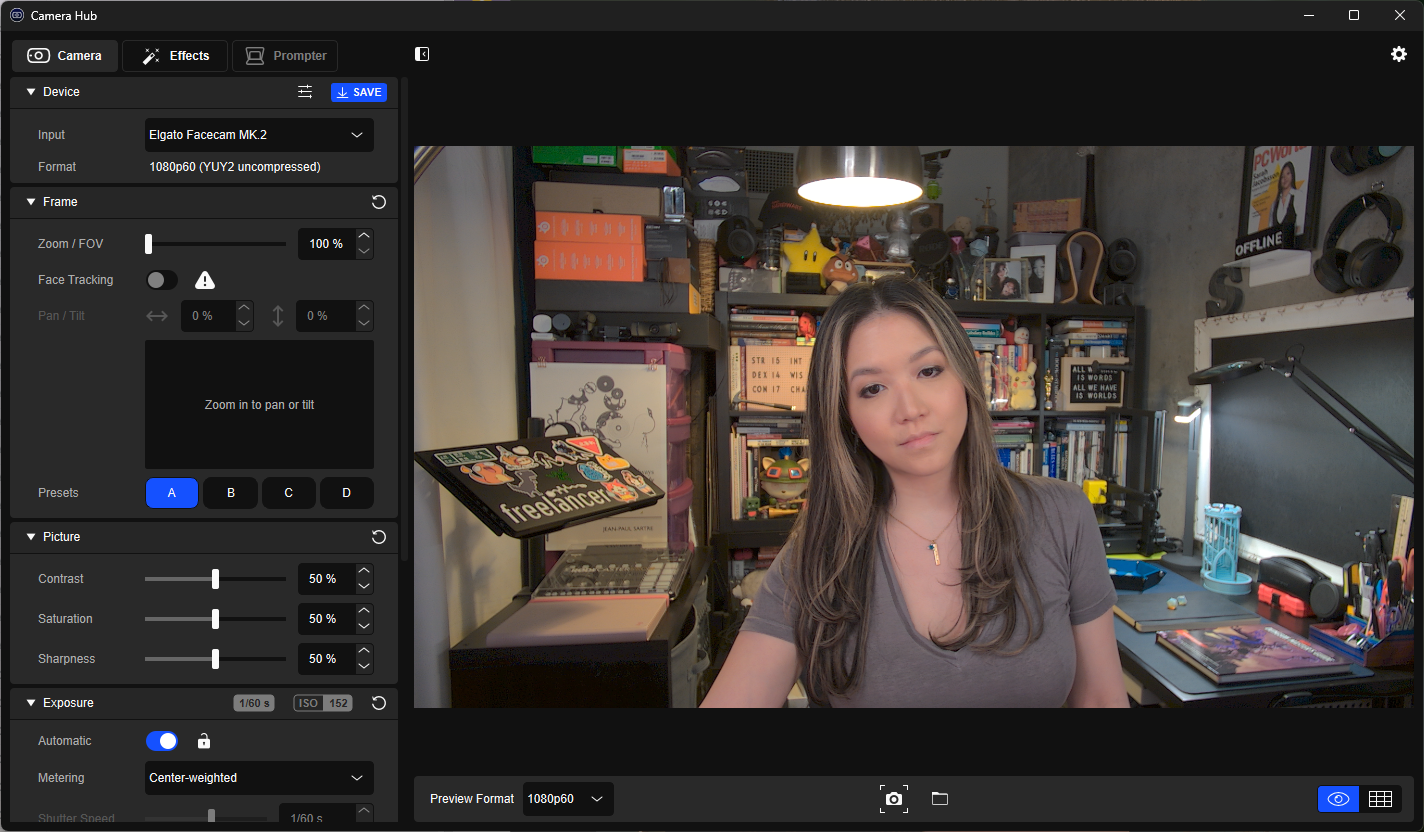
Software matters because webcams often guess badly. Tools such as Elgato's Camera Hub, which supports Elgato webcams including the Facecam MK.2 and Facecam Neo, give users manual control over exposure, white balance, image adjustments, zoom and saved presets. For people who will not touch those settings, Tom's Hardware points to the Logitech MX Brio, saying its automatic exposure and white balance are strong, though the camera costs $200.
Lighting beats a better webcam
Office and kitchen ceiling lights are made for tasks, not faces. They throw shadows from above, which is about as flattering as a passport booth with a grudge. Tom's Hardware says better lighting usually does more than buying a webcam that claims to perform well in the dark.
The classic setup is three-point lighting: two lights in front of the subject at roughly 45-degree angles, plus one light behind. At minimum, the guide recommends two lights on either side of the face and some background light so the shot does not collapse into a dark room.
Dedicated options include Elgato's Key Light and Key Light Neo, plus Logitech's Litra Beam LX and Litra Glow. But ordinary lamps, sunlight or even extra monitors can work. Tom's Hardware says one dimmable light helps, and monitor screens can be turned into soft light sources with a white-screen page. Once the lights are set, users should turn off auto-exposure and adjust the camera for that lighting.
Put the camera where your eyes are
Most webcam mounts sit on top of a monitor because that is convenient, not because it looks good. Laptop cameras tend to sit too low, while desktop monitors may put the camera too high. Tom's Hardware recommends eye-level placement because it gives a more accurate view of the face and makes it easier to look into the lens.
- Use a tripod, desktop tripod or clamp mount if the webcam has a standard camera attachment point.
- Raise a laptop on a stand, box or stack of books, then angle the screen straight on or slightly downward.
- Consider center-screen mounts such as Center Cam or PlexiCam Pro V2 if eye contact is the priority.
Fix the background before blurring it
The background does not need to look like a streamer set, but Tom's Hardware says users should avoid broadcasting laundry piles, roommates or a blank white wall. Zooming and cropping can hide clutter just outside the frame, especially when webcam software supports it.
A wall behind the subject should have something on it: a picture, painting, sign or peel-and-stick wallpaper. If a real background will not work, a pop-up green screen can make replacement backgrounds look cleaner. Background blur is common on work calls, but Tom's Hardware says it generally looks bad, so cropping tightly around the subject is still the better damage-control move.
This story draws on original reporting from Tom's Hardware.