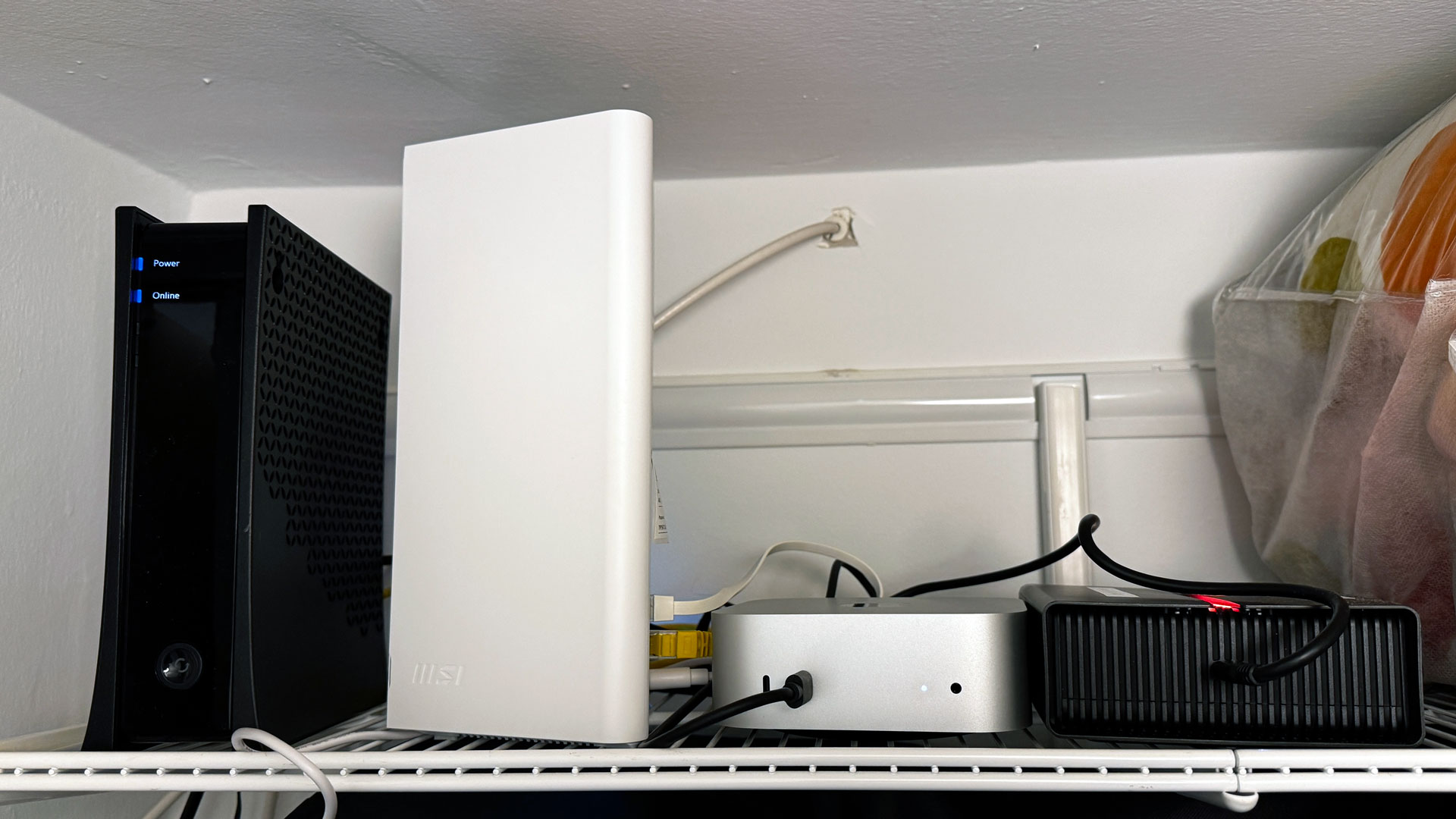
A Mac Mini backup server setup detailed by Tom’s Hardware puts Apple’s M4 desktop in a closet to handle photo-library storage, local file sharing and automated backups. The point is not that the M4 is the cheapest way to do this. It is that a small, quiet Mac can become a competent home server when the household already runs on Apple gear.
The setup uses a refurbished M4 Mac Mini with 16GB of RAM and 256GB of internal storage. Tom’s Hardware said the internal SSD is reserved for macOS and applications, while the actual data lives on external drives: a 4TB PCIe NVMe SSD, a 2TB PCIe NVMe SSD and a Seagate FireCuda Vault X hard drive.
The Mac Mini sits on a closet shelf near the apartment’s only Ethernet connection, attached to the home router and modem. It runs without a monitor, keyboard or mouse, which is the standard headless arrangement. Remote control happens over Apple’s built-in Screen Sharing from another Mac, RealVNC from Windows or iOS, and SSH for command-line access.
How do you use a Mac Mini as a backup server?
In this setup, the Mac Mini works as a backup server by staying on the local network, mounting external storage and accepting backups from other computers. macOS Time Machine backs up a MacBook over the network, while shared folders provide a place to copy files from both macOS and Windows machines.
Tom’s Hardware said the 4TB SSD is split into macOS volumes rather than fixed partitions. One volume stores important documents, an Apple Photos library, copies of photos kept outside Apple’s library and miscellaneous files that may need to be accessed from several computers. A smaller volume holds overflow data, including macOS content caching.
The 2TB SSD is used for Time Machine backups. The hard drive adds redundancy: one volume serves as an alternate Time Machine destination, and another keeps a copy of key documents and the photo library. Tom’s Hardware said that nightly cloning is handled with Carbon Copy Cloner.
The setup still has a weakness familiar to anyone who has ever confused “backup” with “invincibility.” Because the Mac Mini and other computers are in the same home, a local disaster could still wipe out much of the data. Tom’s Hardware said important files and photos are also kept across iCloud, Google Drive and Dropbox, while noting that the arrangement falls short of a clean 3-2-1 backup system unless one copy is offsite.
Why use macOS instead of a NAS or Linux box?
Tom’s Hardware said a network-attached storage device initially looked like the obvious answer, but drive costs and existing Apple devices pushed the project toward a Mac Mini. The M4 model is described as more powerful than necessary, with an M1 Mac Mini or older Intel or AMD mini PC likely sufficient for the same core job.
The Apple-specific advantages are convenience, not magic. Time Machine works cleanly over the network. Shared drives appear in Finder. Apple’s Screen Sharing reduces the amount of extra remote-access software needed on Macs. macOS content caching can also store copies of Apple software updates, App Store downloads and some iCloud data so other devices on the local network can retrieve them faster.
Remote access away from home is handled through Tailscale, which gives the laptop, iPhone and Mac Mini stable network addresses inside a private mesh. On mobile, Tom’s Hardware said RealVNC can reach the Mac Mini through either the local network address or Tailscale, though using a desktop interface on a phone remains a compromise.
The drawbacks are also plain. Apple discontinued macOS Server in 2022, and macOS is not aimed at home-server hobbyists in the way Linux often is. The M4 Mac Mini’s memory cannot be upgraded, so the chosen 16GB RAM configuration could become limiting if the machine later takes on heavier jobs such as local AI. Tom’s Hardware also said some future projects, including Pi-hole, Home Assistant, Plex or Jellyfin, may require Docker or virtual machines rather than straightforward native deployment.
This story draws on original reporting from Tom's Hardware.